Creator Software / Guide
InstaDoodle Login: Sign In After Checkout, Step by Step
InstaDoodle login after you buy: open instadoodle.app/user/login, use your account email, fix common sign-in problems and reach the help desk ticket route.
- Author
- Supplement Health Expert Editorial Team
- Updated
- Reading time
- 7 min
- Sources
- 0 cited
Key takeaways
- 01 The InstaDoodle login page is at instadoodle.app/user/login, and the cloud app needs no download.
- 02 Use the account email from your order, and check the confirmation email if you are unsure which one it is.
- 03 A modern browser on any device is enough to sign in and work on a project.
- 04 For sign-in problems, the seller's help desk at help.instadoodle.com takes a ticket.
The InstaDoodle login is the first task after checkout, and it asks for very little. You open the seller’s sign-in page at instadoodle.app/user/login, enter the account email from your order and arrive in the editor within the same browser window. This guide walks through those steps, shows what to check when sign-in fails and explains where the help desk fits if the fixes do not work.
Steps for the InstaDoodle login
Begin with the address. The seller’s sign-in page is instadoodle.app/user/login, and typing it yourself is the safest route. Searching for the page and clicking the first hit can lead to a lookalike, because a copy can rank above the real page. Keep that address beside your order number so you are not guessing later.
Next, enter the account email you used at checkout. The same address matters for any refund request, so spell it identically every time. Your confirmation email is the best place to compare it against. If the page asks for a password, enter it and sign in.
Once you are inside, the editor opens in the same window. Start a new project, type a short scene and let DoodleAI draw the characters. On the first visit, look for your plan name and credit balance in the account area, if the editor shows them. Knowing the balance before a long build prevents a surprise halfway through a series.
Why there is nothing to install
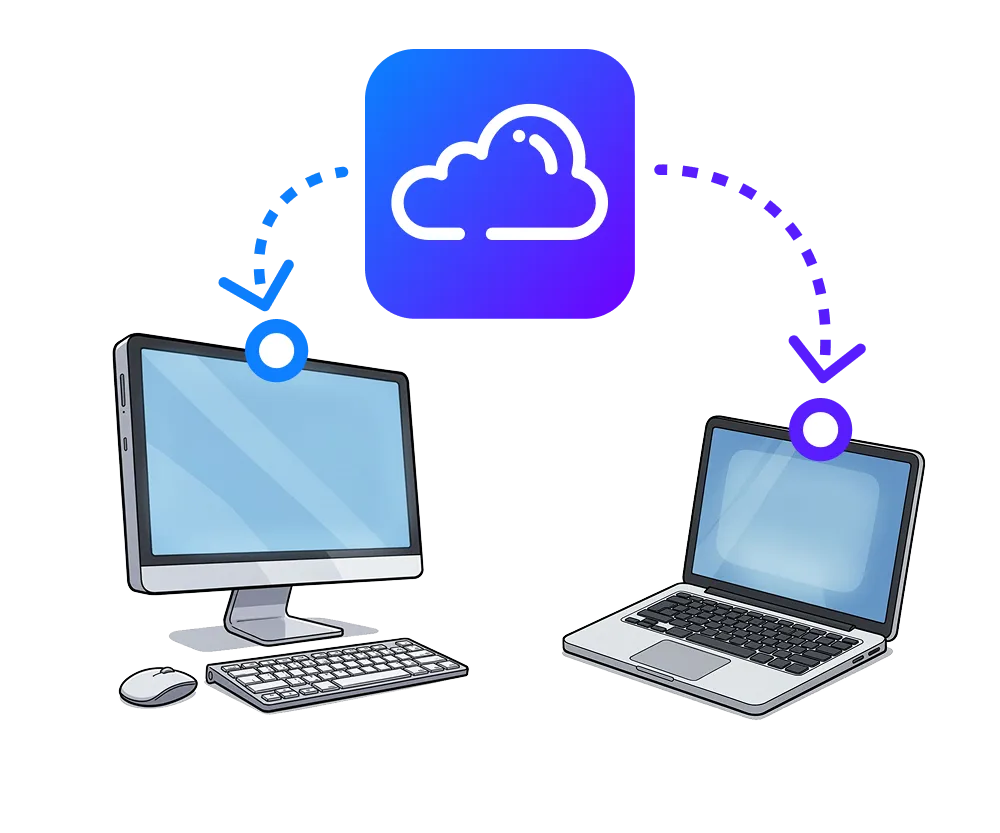
InstaDoodle is a cloud web app, according to the seller. The editor runs in the browser and the heavy work happens on the seller’s side, so there is no setup file, no driver and no update to run on your own machine. The same sign-in works on a laptop, a desktop or another device, provided the browser is current.
Because sign-in is the only gate, a slow connection or an old browser makes the editor feel stiff. Close heavy tabs before a long render, and keep the browser updated. Rendering happens in the cloud, so your computer does less of the work than you might expect.
What to check when sign-in fails
Most sign-in problems have a small cause, so work through these checks in order before you open a ticket.
- Check the address. It should read instadoodle.app/user/login. A different domain is a reason to stop and confirm where you are.
- Check the email. Look for a missing letter, a doubled letter or a stray space, and compare it with your confirmation email.
- Update your browser. The seller says a modern browser works, so an outdated version is the first thing to fix.
- Reload the page and try again. Enter the details fresh rather than relying on autofill.
- Open a ticket. If the details are right and sign-in still fails, send a message through help.instadoodle.com, the seller’s support site.
When you write to the help desk, give the account email, the buying date and the order number printed on your confirmation. Describe what the page shows, quoting any error text word for word. A precise message gets a faster and more useful answer.
Where the help desk fits
The seller’s help desk is at help.instadoodle.com, and it works through tickets. Use it for sign-in trouble, billing questions, plan questions and refund requests. A ticket leaves a written record, which helps if you need to pick the thread up later. The site’s contact page covers general questions that do not belong in a ticket.
Refund requests travel through a separate ticket with its own subject line and details. The InstaDoodle refund policy guide covers those steps. Signing in does not alter your refund position, and cancelling a subscription is a distinct action that does not return money by itself.
Signing in on another device
The same account works on another computer, because the editor lives in the browser and your projects sit with the seller. On a shared or borrowed machine, confirm the address bar reads instadoodle.app/user/login before you type, and sign out when you finish. A browser that remembers your details is convenient at home, but it is a poor fit for a machine other people use.
On a work computer, check the rules before you install an extension or change a browser setting. A blocked pop-up or a strict privacy option can stop the editor from loading, and the fix is usually a browser setting rather than a change to the account. Keep the account email and order number with you in case you need to open a ticket from that machine.
Account habits that save time
A few habits make the login routine. Keep your confirmation email in a folder you can find again. Write the account email in the same place as the order number. Use one browser profile for the editor, so bookmarks and saved details stay together. Bookmark the sign-in page once you have checked the address, so you are not typing it from memory on a busy morning.
If you share a computer, sign out at the end of each session. Your projects belong to your account, and the sign-in is the only key to them. For team use, read the license wording for your plan before you add anyone else, because the seller says agency and team rights apply only where a purchase expressly includes them.
Your first session after signing in
The first session is a good time to settle a few habits. Open the account area and confirm that the plan name matches the tier you picked at checkout. If the name differs, stop there and raise it with the help desk before you build anything, because features and credit allowance follow the tier name rather than the price you saw.
Next, start a practice project with two or three scenes. The goal is to learn the rhythm of the editor, not to finish a clip. Watch how long a voiceover takes to generate and how the credit balance moves after each action. Those numbers give you a realistic picture of what a real project will cost in credits before you commit to a longer series.
Uploads and rights for your first project
Whatever you type, send or store inside the editor is handled by the seller and by outside AI services its terms name. Bring in only images and audio you are entitled to use. Generated material may fall short of exclusive copyright protection, the seller cautions, so check each video before it goes public. The subscription repeats every month, and you can end it through the billing controls or support.
The InstaDoodle hub gathers the plan pages, and the FAQ page answers common account questions. For a plain summary of the tool itself, read what is InstaDoodle.
Our view on the sign-in
The sign-in itself is plain, and the seller keeps the whole tool in one place, which is convenient. We scored InstaDoodle 7.6 out of 10 on our own scale, and the login is only a small part of that figure. The plan you choose and the credit allowance it gives you matter far more. Sign-in is also a good moment to note your credit balance, because the seller’s terms refuse a refund once you have spent more than half of your included AI credits.
Frequently asked questions
Where is the InstaDoodle login page?
The seller's sign-in page is at instadoodle.app/user/login. Type that address into your browser's address bar.
Do I need to install anything to log in?
No. The seller calls InstaDoodle a cloud web app, so the sign-in and the editor both run in your browser.
Which email do I use to log in?
Use the account email you gave at checkout. Your confirmation email shows the details the seller holds for the order.
What browser should I use?
The seller says a modern browser works on Mac, Windows or any device. Keep your browser updated before you sign in.
What if I cannot sign in?
Check the email address for typing mistakes, then use the seller's ticket form at help.instadoodle.com and list your account email and purchase date.
Is the login the same as cancelling my plan?
No. Signing in opens your account, and cancelling is a separate step through the billing controls or support.
InstaDoodle login · InstaDoodle sign in · InstaDoodle account login · InstaDoodle after purchase · InstaDoodle help desk · InstaDoodle cloud app · InstaDoodle account email